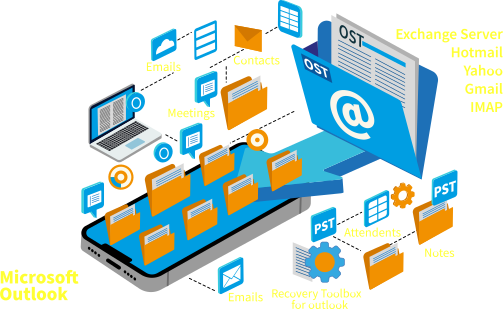


If you use Microsoft Outlook to manage your emails, you’re likely working with a PST (Personal Storage Table) file. Over time, as more emails and attachments accumulate, your PST file can reach its maximum size—causing Outlook to slow down or even stop sending and receiving messages.
Luckily, you can increase the PST file size limit by updating a few settings in Windows.
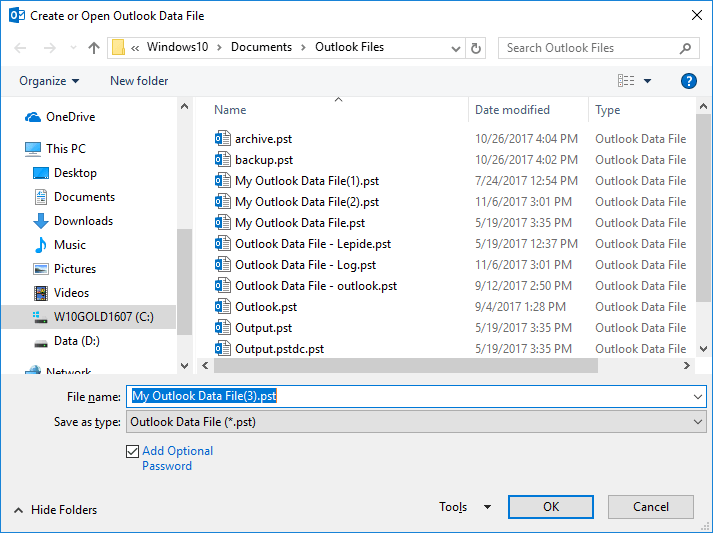
How to Export PST File in Outlook Using the New Items Option?
The steps to create a new PST file may vary slightly depending on the version of Outlook you are using.
Below are step-by-step instructions for different Outlook versions.
How to Create PST File in Outlook with Import & Export Wizard?
You can use the Import/Export Wizard to import data into a new PST file if you already have emails, contacts, or other information stored in another program or file.
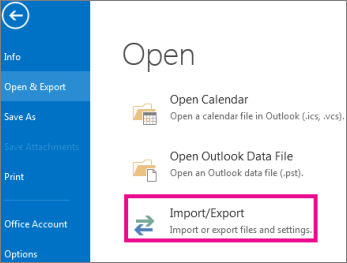
Go to the File tab and select Open & Export >> Import/Export.
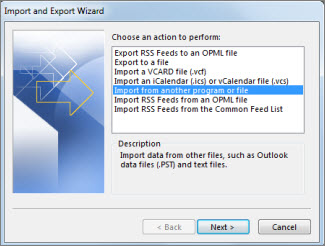
Select Import from another program or file and click Next.
Choose the File you want to import into the new PST file and click Next.

Select the folders and subfolders you want to include in your New PST file and tap Finish.
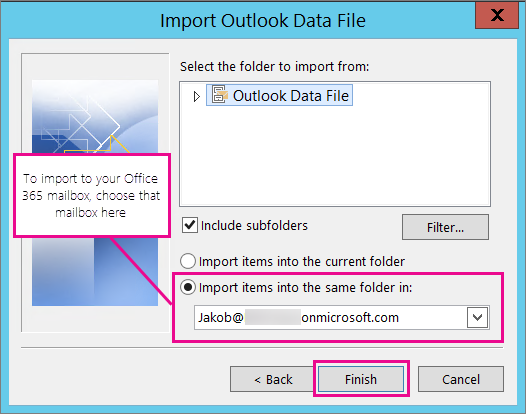
Wait for a few minutes, this process will import your data to a new PST file.
What Is a PST File?
A PST file is where Outlook stores your email, calendar, contacts, and other data locally on your computer. It’s especially common for accounts not using Microsoft 365 or Exchange servers.
How to Increase the PST File Size Limit
Important: Editing the Windows Registry can affect system performance. Only proceed if you’re comfortable making changes—or contact your IT support.
Follow these steps:
- Open the Registry Editor
PressWin + R, typeregedit, and hit Enter. - Go to the PST Settings Location
Navigate to:HKEY_CURRENT_USER\Software\Microsoft\Office\<version>\Outlook\PSTReplace
<version>with your Outlook version:16.0= Outlook 2016/2019/36515.0= Outlook 201314.0= Outlook 2010
- Create Two New Entries (if they don’t already exist):
MaxFileSizeWarnFileSize
- Set the Values
- Right-click > New > DWORD (32-bit) Value
- Name it
MaxFileSize, then double-click it - Choose Decimal and enter a value like
100000000000for 100 GB - Repeat for
WarnFileSizewith a slightly smaller value (e.g.,95000000000)
- Close the Registry Editor
Restart Outlook for the changes to take effect.
Still Having Issues?
If you’re not comfortable editing the registry or Outlook is still running slow after changes, we can help.
All in IT Solutions offers expert Outlook support, email management, and performance tuning.
📞 Contact us today to optimise your Outlook setup and keep your inbox running smoothly.