
If Microsoft Outlook is crashing, freezing, or behaving unusually, launching it in Safe Mode can help you troubleshoot the issue. Safe Mode disables add-ins and custom settings, allowing you to isolate what might be causing the problem.
Here’s how to open Outlook in Safe Mode on a Windows PC.
What is Outlook Safe Mode?
Outlook Safe Mode starts the application with minimal features:
- Disables all add-ins
- Skips reading the Outcmd.dat file (which stores toolbar and menu customizations)
- Bypasses the Reading Pane settings
- Prevents certain extensions from loading
This mode is useful for diagnosing issues caused by third-party add-ins or profile corruption.
How to Open Outlook in Safe Mode
There are two main ways to launch Outlook in Safe Mode.
Method 1: Using the Run Command
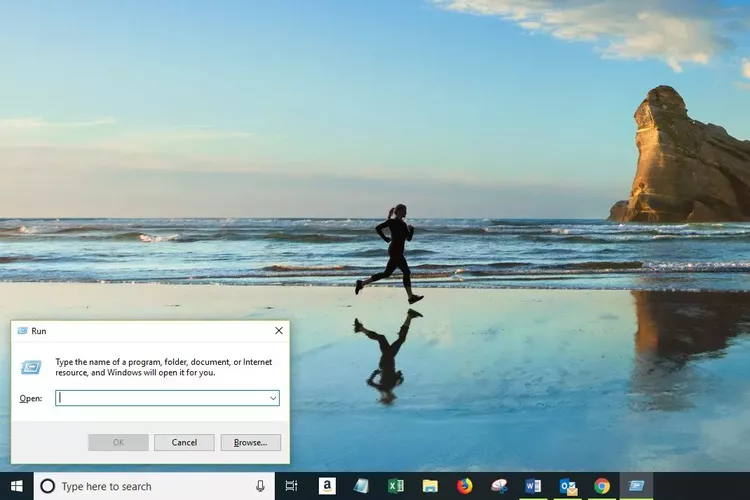
- Press Windows + R on your keyboard.
- In the Run dialog box, type:
outlook.exe /safe - Click OK or press Enter.
- Outlook will start in Safe Mode. You’ll see it in the window title: Microsoft Outlook (Safe Mode).
Method 2: Hold CTRL While Launching
- Hold down the CTRL key on your keyboard.
- While holding CTRL, click the Outlook shortcut (on your desktop or Start menu).
- A prompt will appear asking:
“Do you want to start Outlook in Safe Mode?” - Click Yes.
What to Do Next
Once Outlook is open in Safe Mode:
- Try using it normally to see if the issue is resolved.
- If Outlook works fine in Safe Mode, a faulty add-in may be the cause.
- Disable unnecessary add-ins under:
File → Options → Add-ins → Manage COM Add-ins → Go…
Still Having Issues?
If Safe Mode resolves the problem but you’re unsure which add-in is responsible—or if Outlook won’t start at all—we can help.
📩 Contact All in IT Solutions for Outlook troubleshooting, repair, and support.