
Keeping Microsoft Office up to date is essential for ensuring you have the latest features, improvements, and security updates. Whether you’re using Office 365, Microsoft 365, or a standalone version, updating Office is easy and straightforward. Follow this guide to update your Microsoft Office suite.
On Windows 10/11
- Open any Office Application
- Start by opening any Microsoft Office application, such as Word, Excel, or PowerPoint.
- Go to the File Menu
- In the top left corner, click File.
- Select Account
- From the sidebar, click on Account (or Office Account in some versions).
- Check for Updates
- Under the Product Information section, look for the Update Options button.
- Click Update Options and then select Update Now.

- Let Office Update
- Office will begin checking for updates and install any available updates automatically.
- Once the update is complete, you’ll see a message confirming the update has been installed.
- Restart Office
- Close and reopen your Office applications to make sure all updates are applied.
On Mac
- Open any Office Application
- Open any Office app like Word, Excel, or PowerPoint.
- Go to Help Menu
- In the top menu bar, click Help, and then select Check for Updates.
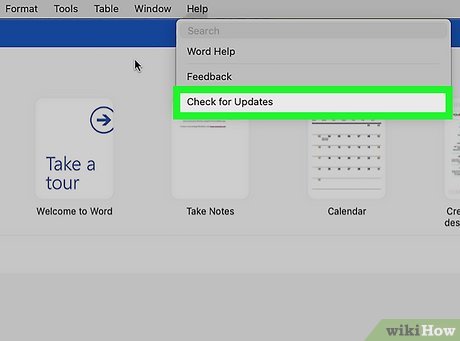
- In the top menu bar, click Help, and then select Check for Updates.
- Use Microsoft AutoUpdate
- The Microsoft AutoUpdate tool will open. If any updates are available, click Update.
- Complete the Update
- Wait for the updates to finish installing. You may need to restart your Office applications for the changes to take effect.
On Mobile (iOS or Android)
- Open Your App Store
- Open the App Store (iOS) or Google Play Store (Android) on your mobile device.
- Search for Microsoft Office App
- In the search bar, type “Microsoft Office” and find the app for Word, Excel, PowerPoint, or Outlook.
- Update the App
- If an update is available, tap Update next to the app.
- Once updated, open the app to start using the latest version.
Tips
- Automatic Updates: Microsoft Office can be set to update automatically. This ensures you’re always using the latest version without needing to manually check for updates.
- Keep Office Updated: Regular updates bring essential security fixes, new features, and enhancements to improve your Office experience.
- Internet Connection: Make sure you have an active internet connection to download and install updates.
Need Help?
If you encounter any issues or need assistance updating your Office apps, we’re here to help!
Contact All in IT Solutions for fast and reliable support.
- Phone: 1300 255 464
- Visit: Support Page