To ensure efficient, secure, and collaborative document management in SharePoint, follow these recommended practices
What You’ll Need
-
What You’ll Need
-
A Windows PC or Mac with internet access
-
A supported browser (Microsoft Edge, Google Chrome, Safari, or Firefox)
-
Your company work credentials (Microsoft 365 account)
-
Step-by-Step Guide
-
Access SharePoint
-
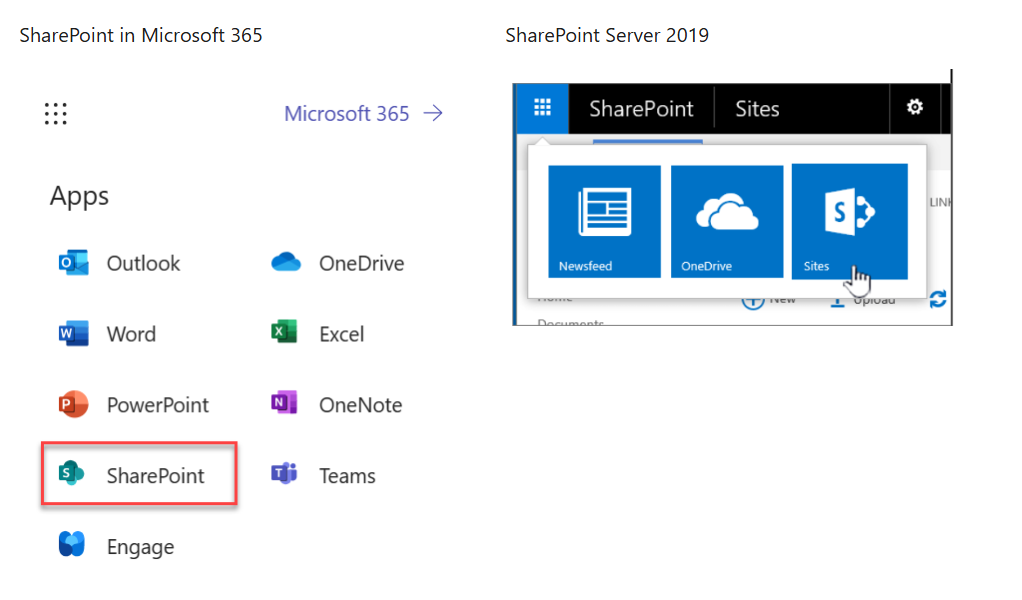
Open a browser and go to your company’s SharePoint site (via Office.com or a direct link).
-
Log in using your work credentials.
-
-
Navigate to Your Site
-
Use the left-hand navigation pane to access your team site, project site, or communication site.
-
-
Work with Documents
-
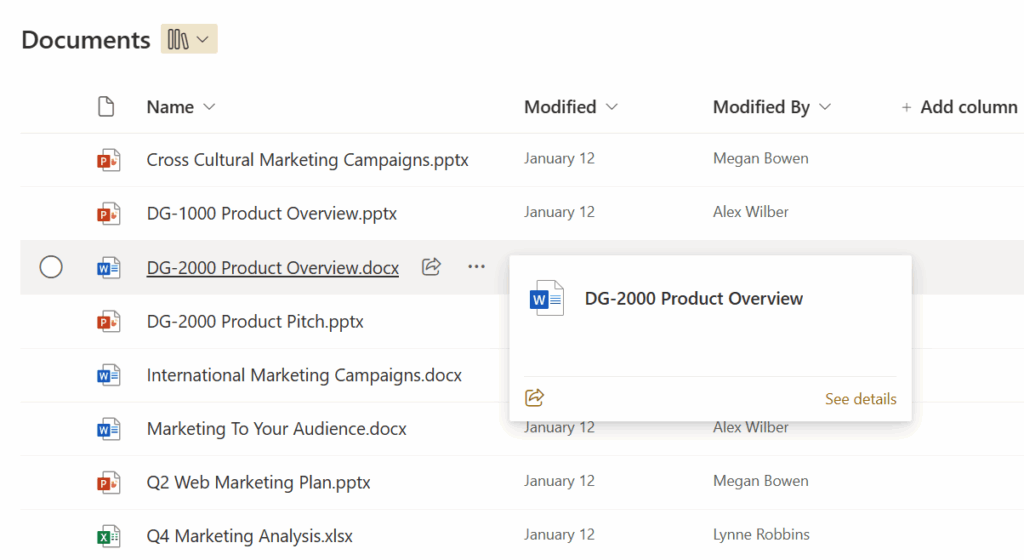
Locate Document Libraries to browse, view, or edit files online.
-
To upload: click Upload → choose a file or folder.
-
To share: right-click a file → select Share → enter recipient(s) → set permissions (View or Edit).
-
-
Enhance Searchability
-
Use metadata and columns to tag documents for easier sorting and filtering.
-
-
Collaborate in Real Time
-
Open files with Office Online (Word, Excel, PowerPoint) for simultaneous editing with your team.
-
-
Manage Versions
-
Right-click a document → select Version History to track changes, restore previous versions, or see who edited the file.
-
Tips
-
Always apply appropriate permissions when sharing documents (avoid “Anyone with the link” unless necessary).
-
Regularly review and update metadata for consistency.
-
Use folders sparingly — rely on metadata for more flexible organization.
-
Enable alerts to stay notified of changes in critical libraries.
Need Help?
Contact All in IT Solutions today for expert assistance.
- Phone: 1300 255 464
- Visit: Support Page